 )
to recursively add all the packages it uses.)
)
to recursively add all the packages it uses.)rdbGUI is a gui interface to a relational database. It was designed with the Calibration Metadata Database in mind, but could just as well be used to access any other MySQL database. With some extra work it could be extended to handle an Oracle or other rdbms as well.
If you're running on SLAC Linux, you don't need to install rdbGUI at all. If you've done standard GLAST set-up, it will already be available to you: in any terminal window, just type
$ rdbGUI
Otherwise, for the time being it is most easily run from within the CMT environment. You will need the MySQL, Xerces and fox external libraries (along with their CMT interface packages MYSQLEXT, XMLEXT and FOX), and a few Glast-written packages.
Currently (Aug 24, 2006), you need
Most GLAST developers will already have the correct version of xerces installed; many will also have mysql. At the ftp site there are several possibilities for fox 1.2.5 Linux binaries. fox-1.2.5_gcc-3.2.3.zip is recommended. For Windows there is only one possibilty. Note it is a Release build of the library. In order for the rdbGUI executable to build and run correctly on Windows, it also must be a Release build.
It's simplest to do a recursive checkout of
rdbGuiRelease (currrent version is v1r12p2). (From
MRvcmt, check it out, select it in the Packages Tree, then do Add
(click the )
to recursively add all the packages it uses.)
Next configure and build. On Windows make a Release build; you may encounter errors if you try a Debug build. Now you can start up rdbGUI just as you would any other executable built by CMT. It takes no arguments. You should see something like this
Every time (not just the first) you start rdbGUI you must do this before you do anything else. Click on File in the menu bar. The first item in the menu is Open DB Schema..; click on this. The initial directory will be the xml directory of the rdbModel package being used by rdbGUI. This is normally just what you want.
If you need to navigate to another directory, you can use the controls (most of which should look familiar, but if not, put the mouse over the control and you'll see a tooltip, describing the purpose of the tool) to do so.
For development work, select calib_user.xml, as is shown below. For production, use calib.xml.
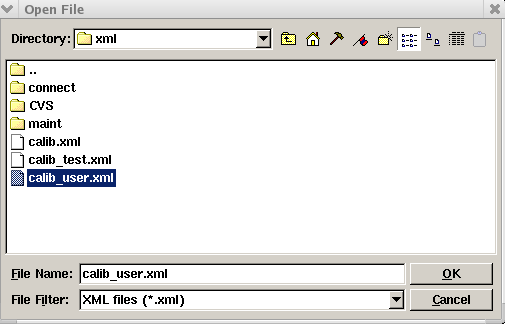
You should see the name metadata_v2r1 under Tables. Click on it and you will see all the columns in the table.
The next step is to specify various connection parameters: which database, on which node, which account, etc. Click on Session in the menu bar and select Open connection. Fill in the fields. profile name and profile description are just to help you remember what is in the profile. database name will be either calib (production database) or calib_user. The latter is an alternate database for developers of calibration algorithms or of code using calibrations. You can still get to these calibrations from Gleam. host:port is always glastCalibDB.slac.stanford.edu:0. username depends on what sort of access is needed: read only or read + write. At this point you may click Save so that in the future you can avoid retyping these parameters. Here is what the dialog might look like for a user wishing to create a profile for read-only access to the production database, calib, just before the password is typed in:
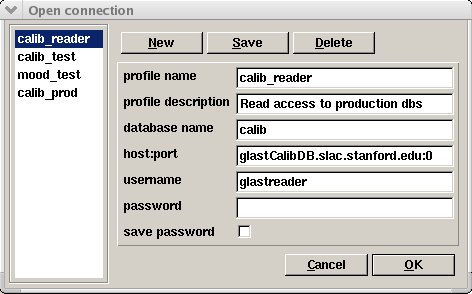
You can see names of saved profiles in the area to the left in the image above. The new parameters have been typed into the rightmost part of the window. For write access, use username calibrator. This screen shot shows a profile suitable for write access to the development database, calib_user. Ask Joanne about passwords.
To confirm that you are connected, click on the Log tab towards the bottom of the window. You should see messages indicating that everything is ok.

You must have successfully connected before attempting any of the following.
You query the database by specifying one or more conditions on columns in the table, then clicking Send. Each condition has the form
column-name comparison-operator literal-value
rdbGUI offers a choice of all defined column
names for the first field and all comparison
operators (<, = and so forth) for the second.
The way you supply the literal value (type it in, select one from a
set of offered choices, use a date widget,...) depends on
column-name.
You may add another condition by clicking More. Select which conjunction (AND or OR) should be used to connect the conditions. AND always takes precedence over OR; that is,
condition1 OR condition2 AND condition3
will be evaluated as
condition1 OR (condition2 AND condition3)
The results quickly show up in the Query output tab. You may use the check boxes to the left to suppress or make visible output of selected columns, however all are always fetched when you make a query.
You may use your mouse to select some entries from the query output, then click Copy to save the text to the clipboard.
Click on Action in the main window menu bar and select Insert. A new insert dialog window window will appear to allow you to set values for all columns which are the responsibility of the user, a slightly shorter list than the one in the leftmost part of the main window since some, like ser_no, will be set automatically by the MySQL server or by rdbGUI. Of these, some are purely informational or even unused, but others are essential. The most important ones are towards the top of the list. You should at least look at all of the columns listed below. Critical ones are in red. Almost all of these will also show up red in the rdbGUI insert dialog as well; the only exception is vend since it has a default which is ok for most circumstances. Learn how to check and correct your new entry in the next section, Repair new entry.
It is very easy to not quite get it right when you insert a new entry in the database. The first thing you should do after the insert is make a query which will fetch the new entry (e.g., set a condition on ser_no which is sure to include it) and take a good, close look. Be sure to examine the data_ident field: it must be correct for the calibration to be used, and is also usually long and complicated, so easy to mistype. If there are any errors, you can repair them by clicking on Redo Last Insert in the Action menu. You will be presented with the same Insert dialog as before, except pre-filled with all the entries from your new row. You need only correct the errors, then submit the update.
You may belatedly discover an error in an entry (too late for the repair function described above) or you may have some other reason to modify a value or two in an existing entry. To do this, just make a query whose output includes the entry you want to modify. Then, in the Query output tab, right click on any part of the row and select the update row item that appears. You will get the same Insert dialog, with current values filled in. Modify as desired and submit.
There are circumstances when you may want to make a new entry which is similar to an existing one. It can never be an exact copy since certain fields like ser_no are always unique, but typically you will want to modify certain other fields (e.g. data_ident, often calib_type, and so forth) to be different as well. The Copy Row function is invoked just like Update Row. You access Copy Row by right-clicking on the row which is to be (nearly) copied. A dialogue will pop up with all user-settable columns already set to the values of the selected row. You can edit as you wish. When you're satisfied, click Send and the new row will be created.
This, rather than Insert, should be used for most new production entries. Insert should be used the very first time a calibration of a new type is entered in the database.
Click on Action in the main window menu bar and select Insert latest. Then proceed as you would for insert.
When new input calibration data is processed for the first time to form a new calibration, usually the input data will have been collected later than was the case for any already-registered calibrations of the same type, and any event data taken since the acquisition of that input should use the new calibration. To insure this, the vend for the old calibrations (of the same type, flavor, etc.) should be set to no later than the start (vstart) of the validity interval of the new calibration. (All of this only applies if the new calibration is good. In particular completion must be OK and proc_level should be DEV or PROD). (Ideally for production runs, job options should be set so that only only calibrations with proc_level equal to PROD will be accepted.) insert latest takes care of fixing up the old calibrations for you.
As time goes on, we hope to improve rdbGUI so that each common kind of database manipulation is handled by its own dialogue, but for now some of them require a series of rdbGUI primitives.
Suppose you have improved a calibration algorithm. You may want to reprocess old input data to produce a new calibration which should be used instead of an old one covering the same validity interval. This can be done in two steps:
In this example you can see the query and its result: just one old calibration satisifed all the conditions. The next step would be to right-click on this entry, select the Update function, and change vend for the row to 2005-4-7 11:00.
This section has some background information and details which may be of interest to the regular user of rdbGUI
MySQL parameters: By default, Gleam uses the production calibration database called calib. If you want Gleam to access entries in calib_user you need to set the job options parameter CalibMySQLCnvSvc.DbName to "calib_user".
Columns: Certain of the columns have special meaning, particularly when accessing calibrations from Gleam for event processing. In that context, the idea is not to ever specify a particular calibration by name, but rather to specify certain qualities of the calibration, then use the database to look up the most appropriate calibration, based on those qualities. Gleam uses some columns to search for the calibration, and others (data_fmt and data_ident) to read in the corresponding data. The following table lists the search columns and how conditions on them are established:
| Name | Condition and how set |
|---|---|
| instrument | Column value must match internal program value (set by job option CalibDataSvc.CalibInstrumentName, defaults to "LAT") |
| calib_type | Must match type specified in (user-coded) TDS path to desired data; must be one of the supported types available in the list presented by rdbGUI |
| flavor | Must match flavor specified in (client-coded) TDS path to desired data. For some clients, like CalRecon, the end user may have to set client-specific job option parameters. Also, if not "vanilla", flavor must be among those in the value for the job options parameter CalibDataSvc.CalibFlavorList |
| (vstart,vend) or enter_time |
For default running, timestamp of event
must be within the interval demarcated by vstart and
vend. As the program cycles through events, their timestamps may
increase beyond vend, in which case a new calibration will be
fetched automatically. Alternatively, a special diagnostic mode may be selected by setting the job option parameter CalibMySQLCnvSvc.UseEventTime to false and setting a value for the parameter CalibMySQLCnvSvc.EnterTimeStart. In that case, vstart and vend will be ignored, but the search will attempt to find the calibration meeting all other conditions with enter_time as soon as possible after the value of the parameter. |
| proc_level | Default behavior is that it must match one of PROD or DEV; it will try first for PROD. For production runs this should be changed by means of the job option parameter CalibMySQLCnvSvc.QualityList to only accept PROD. |
| completion | Value must be OK. There is no way to modify this condition |
| program name | package name | user response | arcane instructions for experts | ||
| Time-saving hint | Will be true in near future | Temporary; will change soon | Warning | Rendered obsolete |
J. Bogart, M. Frailis, R. Giannitrapani
Last modified:
