Using GoGui
Comments, complaints, suggestions on this documentation or on
GoGui itself are always welcome.
Initial Setup
You need the GoGui executable itself. The
newest version is generally available for RHEL5,
RHEL6 and Windows. Old versions are availalble
for RHEL4 and Mac (snow leopard).
The RHEL5 executable may be used on RHEL6 machines.
For download see
ftp://ftp-glast.slac.stanford.edu/glast.u05/GoGui/. You'll probably want the most recent
build (currently 1.4.0 for Windows and Linux; 0.9.6 for Mac).
GoGui can be found on a
centrally maintained RHEL5 or RHEL6 SLAC machine at
/afs/slac.stanford.edu/g/glast/applications/install/@sys/usr/bin/GoGui
If you use the standard group setup file
/afs/slac/g/glast/ground/scripts/group_scons.cshrc
or something similar it will
be in your path.
Windows developers
may also need to download
QtForGoGui.zip, which includes libraries QtCore4.dll, QtGui4.dll and
mingwm10.dll.
GoGui
on Windows does nearly everything the Linux version does for the Windows 7.1
compiler (Visual Studio 2003).
For the Windows 9.0 compiler (Visual Studio 2008) SCons will also build
Studio project files.
Effective use of GoGui depends on access to external libraries, the
cvs repository, and a working installation of SCons.
By default GoGui will attempt
to translate an environment variable GLAST_EXT, environment variables
CVSROOT and CVS_RSH but it is
also possible to establish all these values within GoGui.
You must set a path for the scons command using the GoGui
Options/utility options.. menu item or, when you try to issue
an scons command, GoGui will crash.
From SLAC Central Linux
Bring up
GoGui.
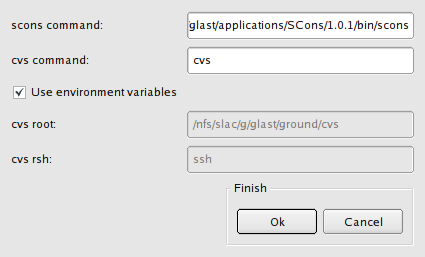
Click on the utility options..
item in the Options menu and
fill in values. Full value for
scons command:, not visible in the
screen shot, is
/afs/slac/g/glast/applications/SCons/1.0.1/bin/scons,
but this is now out of date. Version should be at least 2.1.0
(as of August, 2012) or, if you have
a typical user environment at SLAC, the recommended version of SCons will
already be in your path In that case the
value for scons command: can just be
scons
Check if scons has a good definition by issuing a
"which" command at the shell
prompt, before bringing up GoGui.
Command and response should look like this:
$ which scons
/afs/slac.stanford.edu/g/glast/applications/install/@sys/usr/bin/scons
If you haven't defined environment variables
for CVSROOT and CVS_RSH you can unclick the check box and type in the values
shown. You will in any case need to bring up the utility options dialog
in order to set a good value for scons command.
Next establish the location of external libraries. By default GoGui
will use the value of the environment variable GLAST_EXT.
You may
also manually type in the value you want by clicking on the
Set extlib path item in the
Options menu,
but this is not recommended;
see warning below. The correct values for SLAC Linux are:
| rhel5 32 bit: |
/afs/slac/g/glast/ground/GLAST_EXT/redhat5-i686-32bit-gcc41 |
| rhel5 64 bit: |
/afs/slac/g/glast/ground/GLAST_EXT/redhat5-x86_64-64bit-gcc41 |
| rhel6 64 bit: |
/afs/slac/g/glast/ground/GLAST_EXT/redhat6-x86_64-64bit-gcc44 |
On a central SLAC node the correct value for the architecture of your
log-in machine will be set by doing one of
$ source /afs/slac/g/glast/ground/scripts/group_scons.cshrc
$ source /afs/slac/g/glast/ground/scripts/group_scons.cshrc 32
where the second version will force the definitions appropriate for
the corresponding 32-bit machine even if you're logged onto a 64-bit machine.
There is a bash version, group_scons.sh, in the same directory.
Warning: Note even for rhel4 32 bit you cannot
use the same value for GLAST_EXT that you use for CMT builds.
Warning: In order for the wrapper scripts
(which allow you
to run executables generated by SCons from the command line, without
any elaborate set-up)
to work correctly, the value of the GLAST_EXT environment
variable when you run the script must match the value you told
GoGui to use when you built the executable. Hence it is strongly
recommended that you set this environment variable routinely when you
log in to SLAC linux.
From a Remote Machine
Copy or download the GoGui executable from the location
noted above
to your machine. Other prerequisites are:
- Python
- Working installation of SCons. This requires that you already have
a proper installation of Python. You can find downloads and documentation
at the SCons home page.
2.1.0 or 2.2.0, is recommended.
Warning: Windows users
must use 1.3.0 or later. Earlier releases of SCons are not compatible
with our extensions for Windows project file support.
- Installation of external libraries. Directory structure should
match that at SLAC.
- Working CVS access (no different than pre-SCons)
As in the SLAC Linux case, it's recommended you set the environment
variable GLAST_EXT to point to the root of your local installation. Then
you can bring up GoGui and set anything that isn't already correct by
default in the utility options.. dialog.
Warning: you must tell GoGui where it
is in the
Options/utility options.. dialog or the process will crash
the first time you try to build something.
Getting a base release
In order to do anything other than fiddle with options,
you need access to a so-called
base release: a source distribution of a
supported container package like ScienceTools or GlastRelease.
Using an existing distribution at SLAC
On SLAC Linux you can copy an RM build to an area where you have write
access. Note this must be a new-style RM build, with no intervening version
directories. You can find ScienceTools releases on u30, e.g.
/nfs/farm/g/glast/u30/ReleaseManagerBuild/redhat5-i686-32bit/
for rhel5 32-bit. For GlastRelease, substitute u52 for u30 in the above.
Then use the set base
item in the Options menu to tell GoGui where the
root of your installation is.
GoGui will remember all base paths you use
in the combo box so that you can readily go back and forth between
different development projects. This information, like everything else
entered in options dialogs, will be preserved from session to session.
It's also possible to use the actual build
in place. Set the base path to the build you want using
Options/set base path..; then use
Options/set supersede path.. to set the
supersede path to an area where you
have write access. This only behaves properly if nothing in the
pre-built release needs to link to your development libraries.
Fresh checkout
This works whether you're local or remote.
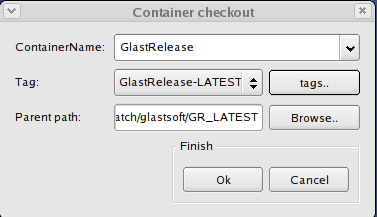
Click on the checkout-container icon
 in
the tool bar (also available in the CVS menu).
Tell GoGui
which container you want, which tag you want
(you can see a list of candidates by clicking the
tags.. button) and where it should go. The
parent directory must exist or the checkout will fail.
Checkout of a full container takes a couple minutes and, unlike other
lengthy GoGui commands, there is no feedback until it's over (to be fixed
in a future release). If it was successful, the checked-out container will
now be your base installation and the
GoGui window will update
accordingly.
in
the tool bar (also available in the CVS menu).
Tell GoGui
which container you want, which tag you want
(you can see a list of candidates by clicking the
tags.. button) and where it should go. The
parent directory must exist or the checkout will fail.
Checkout of a full container takes a couple minutes and, unlike other
lengthy GoGui commands, there is no feedback until it's over (to be fixed
in a future release). If it was successful, the checked-out container will
now be your base installation and the
GoGui window will update
accordingly.
Or you can do the same thing from the command line if you know
exactly what you want, e.g.
cvs co -r GlastRelease-20-08-11 -d 20-08-11 GlastRelease-scons
will check out GR 20-08-11 into a directory named 20-08-11.
Developer distribution
You can download a developer distribution by means of
RMViewer or one of the Installers
(gui or
command-line).
Then in GoGui set the base path to the top-level
directory of the distribution.
What you can see
Note: most of the example screenshots were made with
older versions of
GoGui which look rather different from 1.4.0.
See an annotated screenshot from GoGui version 1.3.0 (identical to 1.4.0
except it has one extra button for a now-obsolete function)
here.
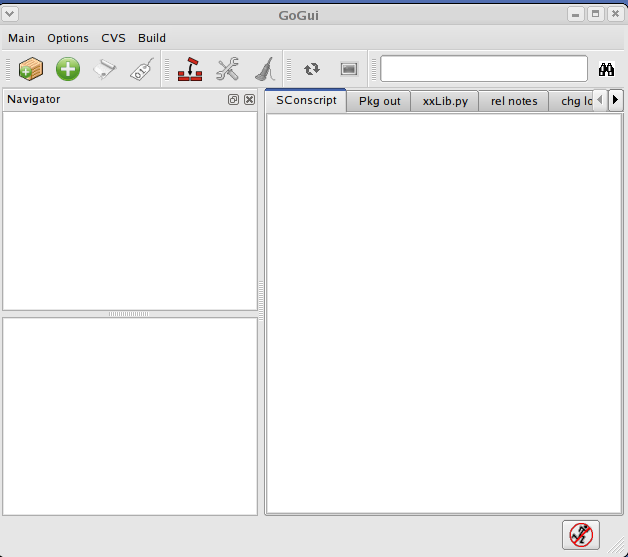
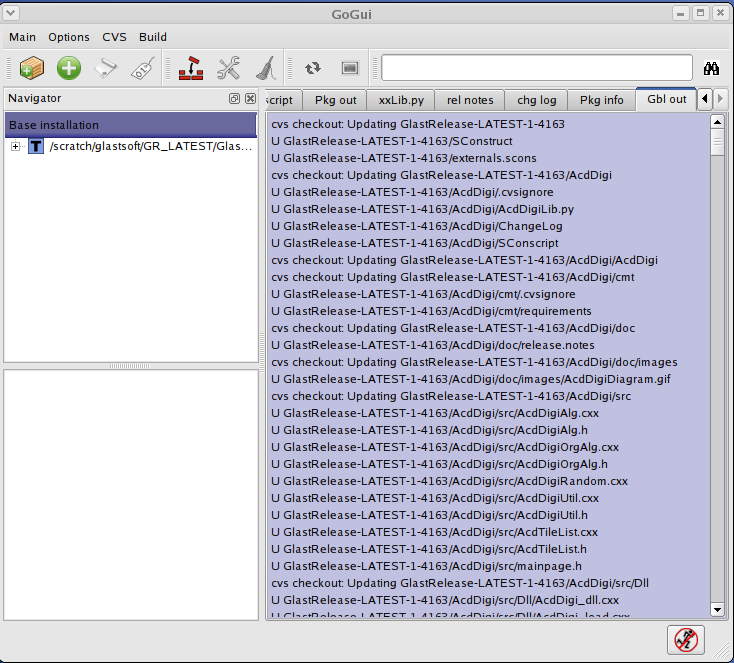
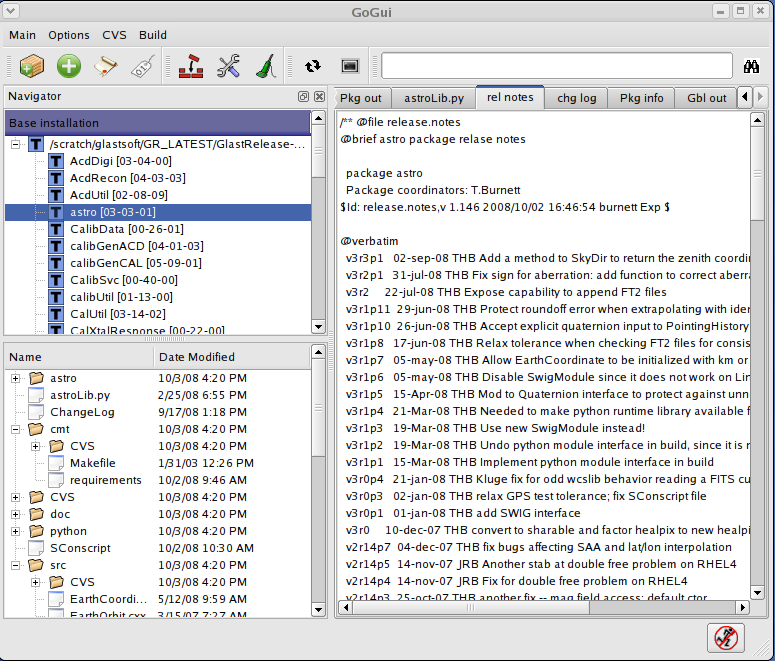
Click on the plus  next to the container directory to see all the contained packages.
Then click on a package (top-level container is also fair game) to
see the full file hierarchy for that package in the lower pane. Select
a tab from the panel on the right to see any of several package-specific
files as shown in this screenshot,
output from per-package commands, or output from global commands
like container checkout.
next to the container directory to see all the contained packages.
Then click on a package (top-level container is also fair game) to
see the full file hierarchy for that package in the lower pane. Select
a tab from the panel on the right to see any of several package-specific
files as shown in this screenshot,
output from per-package commands, or output from global commands
like container checkout.
Customization
The Qt widgets behave in predictable fashion: you can adjust the window
size, adjust size of panes within the main window, hide or show
individual toolbars (right-click in the general area of the icons) or
even detach the entire left Navigator part of the window.
Of these adjustments, the only one currently preserved from session to
session is size of the GoGui window (and, mysteriously, it's only preserved
when running on Linux).
What you can do
Most of the functions below only become available when a package
is selected. You select a package by clicking on it in the Navigator
pane to the left. Most of these functions are also available
when you click on the whole container (rather than a normal package
like facilities)
Invoke SCons to
 build or
 clean
clean
Select package first. Then click on tool bar item or item in
Build menu. Or right-click on package and
click on desired operation in context menu.
By default you will get a debug/no-opt build. You can change these
settings by clicking on build options..
in the Options menu.
GoGui has specific widgets or menu items to do the
most common operations and setup but not everything is supported to this
degree. However it does include a couple more general-purpose (but also
more difficult to use) tools in order to make more of SCons command-line
functionality available:
Add arbitrary SCons options See the item
"extra SCons options.." in the Options menu. Options must be typed
exactly as they would be on the SCons command line. If you need to
specify more than one, separate by spaces. Options added this
way will be applied to all subsequent SCons commands.
To see all possible options,
bring up a terminal window, set default directory
to the directory containing your SConstruct file (root of distribution)
and, assuming scons is in your path, type
scons --help
Options already handled by GoGui
(e.g. --with-GLAST-EXT, options which establish compiler, --doxygen) should
not be set through this generic dialog. Results are unpredictable.
The options you set this way will be saved between GoGui sessions.
Don't forget they're there!
Build an arbitrary target or targets
For this use the dialog box at the bottom of the GoGui window. If you
first select the top-level container in the Navigator window, you will
be able to specify any target or collection of targets (separated by spaces)
known to SCons. If a regular package
is selected, only certain targets are recognized.
You can also include options along with the target or targets. Unlike
options set with the "extra SCons options.." menu item, they
will apply to this one invocation only.
Available targets
include the following:
- Any individual built file created in the build, whether the result
of a compile, a link, a copy, etc. Type the full file path, relative
to the directory containing SConstruct, in the dialog box.
- libraries builds all libraries
- astro-libraries builds libraries belonging to astro package
- astro-programs builds all executables (test programs and other
apps) belonging to astro package, but not their wrapper scripts
- test builds all test programs and their wrappers
- to_install Installs all installable source files: includes,
xml files, job options, etc.
- StudioFiles Builds all project and solution files (Windows vc90
compiler only).
- forVS Combination of setup, to_install and StudioFiles. Windows
users can build this one target, then bring up Visual Studio using one of
the generated solution files for all other building.
All of the above except for the first are alias names. For the most
up-to-date information about supported alias names, see the file
site_scons/site_tools/registerTargets.py. All are defined there except
for the Windows-only ones.
Once you have typed in the target you want to build, hit "return" or
click on the target icon.
Warning: SCons is much more thorough about
cleaning (and building) than CMT.
For example, if SCons is asked to do a clean on
xmlBase, in addition to deleting all files
built from the xmlBase build directory and
all files from xmlBase installed in the
top-level exe, bin, lib, data, xml or include directories, SCons will
also remove all build products from packages it depends on.
xmlBase depends only on
facilities, so the additional files removed
in this case are
- All object files (.os in this case, since
facilities builds a shareable library)
- facilities library (both local in the
package and installed copy)
- facilities includes in top level include
directory used by xmlBase, namely
commonUtilities.h and Util.h
This is default SCons behavior. We may decide we want to change it
(if we can), but for now this is what happens.
Similarly, if asked to build xmlBase
SCons will also build or install any products from
facilities which it requires and which
are absent or not up to date,
which was not the case for CMT on Linux (but should have been).
Run a program
..by right-clicking on the file
in the lower left pane (package hierarchy) to bring up a context menu
and selecting
run for "straight" running,
run.. if you need to supply arguments and
 debug to run the program in gdb. You
can find the program either by
debug to run the program in gdb. You
can find the program either by
- First selecting the package which builds the program and find it in the
package file hierarchy under
build/redhat4-i686-32bit-Debug (or similar;
exact value of last field, known as the
variant, depends on OS and compiler options).
- Or select
top container package and find the name of the desired program under
exe/<variant> or
bin/<variant>.
Why is the program in three different places?
See explanation below.
Yet another way to run a program is to create a terminal window (see
"Miscenllaneous other functions" below) and invoke the program directly.
Required setup (e.g., setting appropriate value for LD_LIBRARY_PATH on
Linux or PATH on Windows) will have already been set.
 Exclude a package
Normally, if you have multiple versions of a particular package,
SCons will operate on the one with the "highest" directory name
alphabetically (e.g.
xmlBase-04-04-02 in preference to
xmlBase-04-03-01
or plain, unadorned xmlBase)
and will always use a version from the
supersede area in preference to the base area if one is available.
If that's not what you want, you can explicitly exclude a package
and SCons will ignore it. Its display icon in the package list will
acquire a red X (for a head package it will look like
 ) and various functions for that package will be disabled.
There is a bug somewhere that I haven't
been able to track down, so that these visual changes typically don't
happen immediately. To force them to happen, click on a package. If
there is a supersede path, you should click on one package in the
base path and one in the supersede path to ensure that the display
is totally up to date.
From the Options menu select
Set supersede path.. It brings up a dialog
remarkably similar to the one for
Set base path... Packages in the directory
you select will be treated as part of your set-up. However it will
no longer be possible to build packages in the base installation.
Once
there is a supersede directory, SCons treats the base installation like
an external library. Behavior of SCons (and therefore GoGui) may not
be what you expect.
Additional CVS operations
- cvs update (normal)
- cvs -n update (show what update would do, but don't do it
- cvs update -A (update and remove sticky tags
 cvs
commit changes
cvs
commit changes
All of the above are available from package context menu,
or from CVS menu in
top menu bar once a package is selected. The commit icon also
appears in the top toolbar.
- cvs diff a file, available from file context menu
 check out a package
Miscellaneous other functions
 Bring up terminal window with setup done.
NOTE: This only works properly if you have
first selected a package. If you have a supersede directory, the selected
package should be from the supersede area, not from the base area.
 Refresh package hierarchy display
 Remove a package
 Type a string in the space just left of the icon, then hit Return or Enter
on your keyboard or click the icon. GoGui will highlight the next occurrence of
the string in whichever pane of the tabbed panel is visible.
Type a string in the space just left of the icon, then hit Return or Enter
on your keyboard or click the icon. GoGui will highlight the next occurrence of
the string in whichever pane of the tabbed panel is visible.- Browse a file. Select the package of interest in the upper left
pane, then find the file in the package browser (lower left pane) and
right-click. Select browse and the file
will come up in its own window. You can select and copy text from
this window but you can't modify the original file.
- Select preferred editor (as of 0.8.8). Click on
preferred editor.. in the
Options menu. By default the editor will be
set to write (executable name for WordPad) on Windows and emacs
on Linux.
- Edit a file (as of 0.8.8). Right-click on a file in the package browswer
and select edit. The file will come up in your
preferred editor.
 On a Windows machine, if project and solution files have been built and
a package is selected, this button will bring up Visual Studio using
the solution file for the selected package. If the top-level container
is selected it will use the special solution file all.sln. If
Gleam is selected it will use allGleam.sln (includes all libraries
as well as Gleam executable project), if it exists, rather than Gleam.sln
(which includes only those libraries needed to link Gleam). You can also bring up Studio by
navigating to a solution file in subfolder
studio/Windows-i386-32bit-vc90-Debug (or something similar,
depending on your settings) and right-clicking on it. The special file
all.sln contains all projects for the container. If
On a Windows machine, if project and solution files have been built and
a package is selected, this button will bring up Visual Studio using
the solution file for the selected package. If the top-level container
is selected it will use the special solution file all.sln. If
Gleam is selected it will use allGleam.sln (includes all libraries
as well as Gleam executable project), if it exists, rather than Gleam.sln
(which includes only those libraries needed to link Gleam). You can also bring up Studio by
navigating to a solution file in subfolder
studio/Windows-i386-32bit-vc90-Debug (or something similar,
depending on your settings) and right-clicking on it. The special file
all.sln contains all projects for the container. If
Fine points
SCons init
SCons does a lot of verification before it actually builds anything:
- Checks that each required external is available and usable
by building little test programs referencing header files and libraries
from the external. Information is cached so that most of this work is
not needed for each scons invocation
- Builds dependency tree used to determine what else needs to be
rebuilt when you ask for a particular target. Some of these dependencies
are derived from information supplied by us in, e.g., SConscript files.
Some things SCons can figure out by itself, for example exactly
which .cxx files depend on which header files.
These operations could be quite time-consuming with old versions of SCons,
so GoGui used to use a special protocol to
avoid them whenever possible, at the cost of possibly not recomputing
dependencies when necessary. Instead there was a special "init" step,
done only once in a typical session. But, more recently, the costs of this
approach started out-weighing the benefits, so, starting with GoGui version
1.2.0, the separate init step has been eliminated.
SCons queue
You may make several SCons requests (e.g. per-package builds or
cleans) and they will be queued, to be executed in
order requested. The
status bar at the bottom often contains text like
SCons request count: 0
Clicking the
 icon
when SCons
operations are in progress will cause the entire queue to be cleared.
icon
when SCons
operations are in progress will cause the entire queue to be cleared.
Executables and wrapper scripts
For each executable target, SCons first makes the executable in
packageName/build/variant,
(variant depends on platform and build settings. Typical
values are redhat4-i686-32bit-gcc34-Debug and XP-i386-32bit-vc90-Debug) then
installs it (copies it to
installationDir/exe/variant), and finally creates a
wrapper script in installationDir/bin/variant. The
wrapper script may be run directly from the command line with no
prior set-up except that the value for environment variable
GLAST_EXT must match the value used when
the executable was built.
Multiple versions of one package; versioning
Each package potentially has several version strings of the form
MM.NN.PP (for now; someday will need to expand this to accommodate
sensible naming of tags along
a branch) associated with it:
When you first check out a tagged release, CVS tags of individual
packages will match the version strings in their SConscript files, and
all package directory names will just match the package name with no
appended version information. However if you are developing a package,
you'll need to either remove its tag by doing
cvs update -A or check out a head
version. In either case there is no longer a CVS tag associated with
the package. If you check out a HEAD version (or another tagged version)
of a package without first deleting the original, you'll need to give its
directory another name, one with version-like information appended.
The GoGui dialog for checking out a package will provide some guidance.
For build and clean operations SCons pays no attention to CVS tag or
version information in SConscript file. If the target is a package name
(e.g., if you click the build icon while a package is selected), SCons
will operate on the version of the package whose directory name is
"highest", based on appended version string, if any.
A directory name with appended version information is higher than
the corresponding name without. As of GoGui 0.8.3, build and
clean functions are disabled for packages which are not the highest
version.
Behavior of GoGui for earlier versions
was confusing
in this regard. If your installation has packages
facilities and
facilities-02-18-03 and the first one is selected
when you click the build icon, the second one will get built.
Created: 02-Oct-2008
Last revised: